【iOS】ダークモードに対応させる
2020/08/09
はじめに
最近はダークモード対応のアプリもだいぶリリースされてきて,ダークモード対応はマストかなと感じています.つくよです.
そんなに難しい物ではないですが,アプリ起動中にライト・ダーク切り替えると変わらない要素があったりとちょっと注意が必要です.
画像と色をAssets Catalog管理する
画像
いつも通り画像をAssets Catalogにドラッグして登録
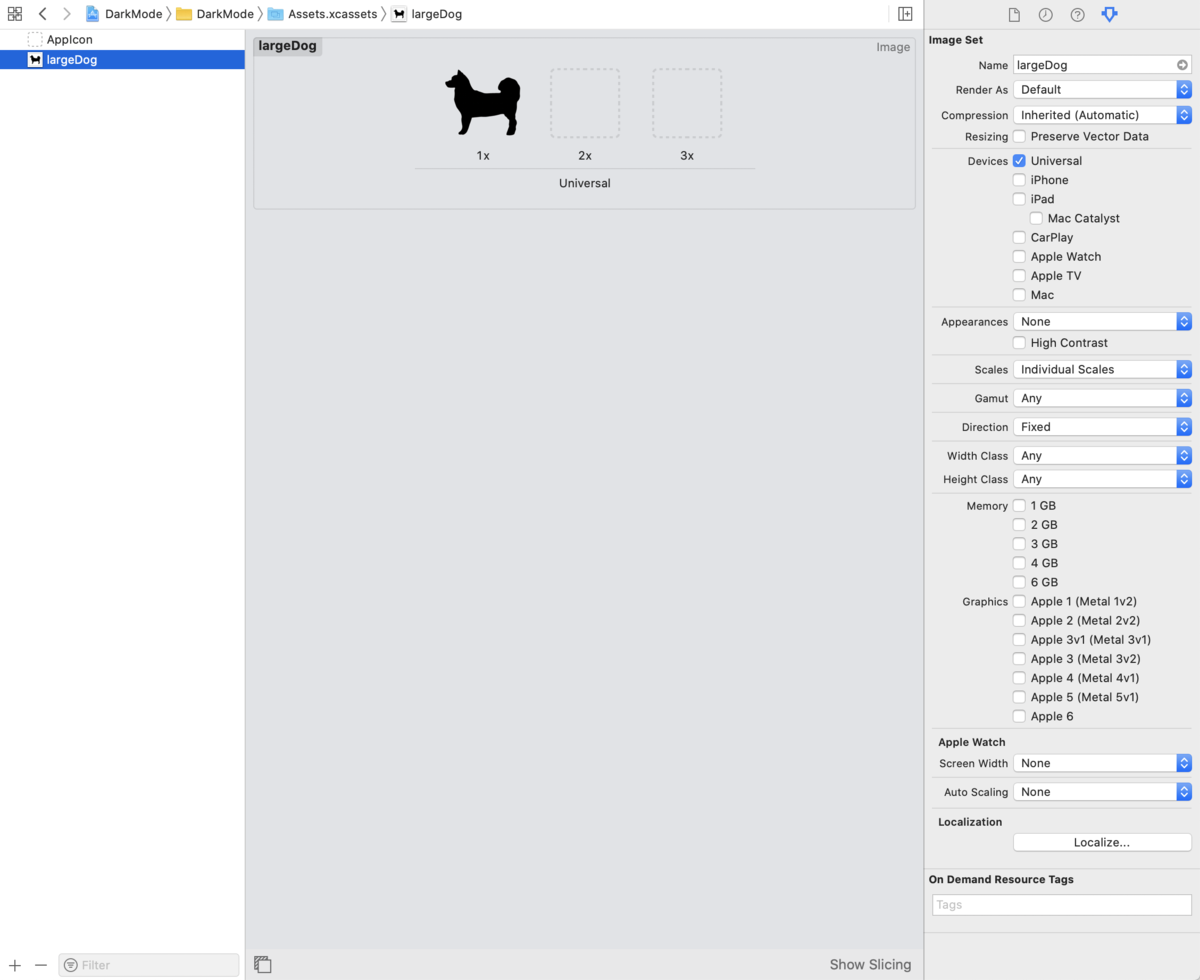
選択すると右のインスペクター?にAppearancesと言う項目があるので
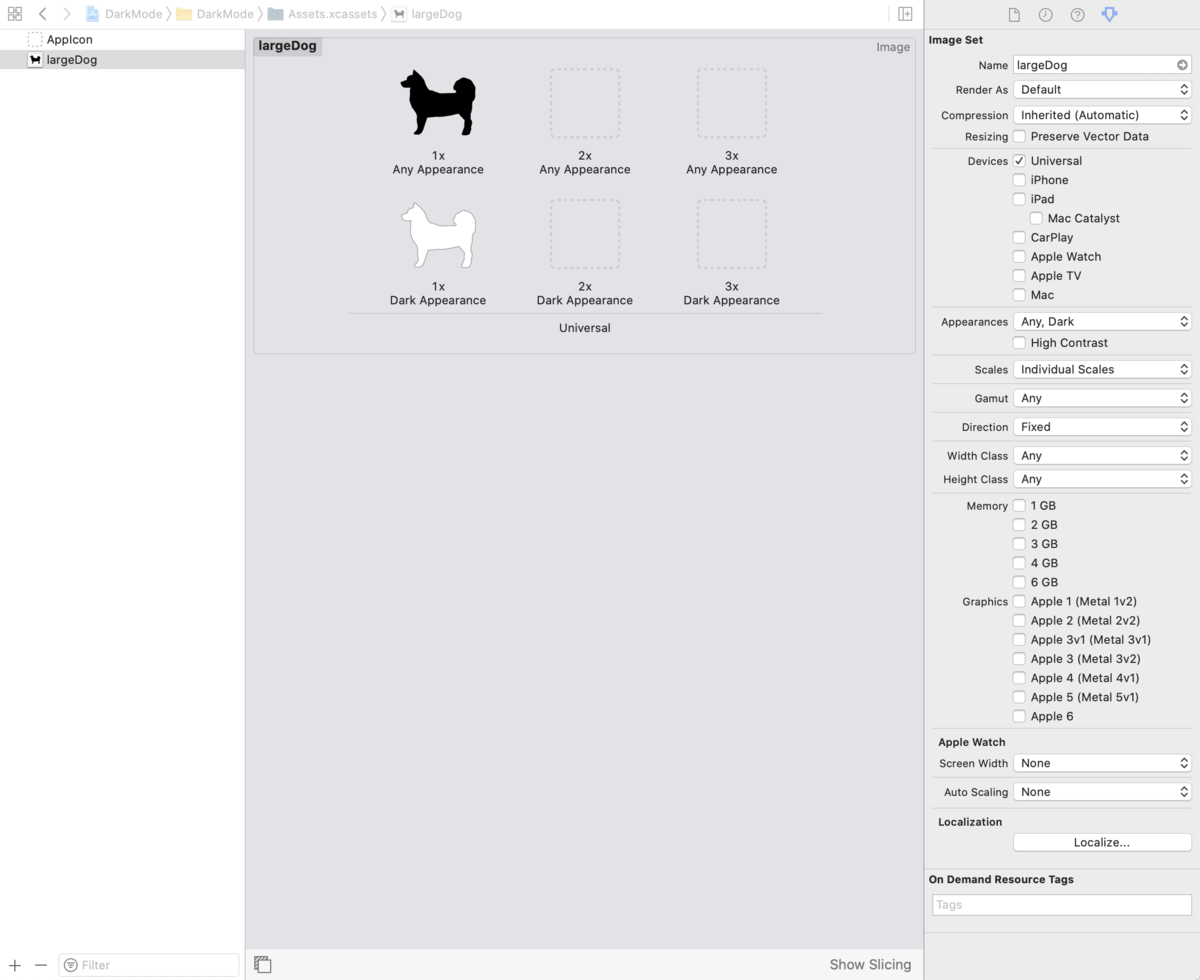
その項目をNoneからAny, Darkに変更しましょう.
変更すると画像の枠が下に追加されます.
そこにダークモード時の画像を登録しておきましょう.
色
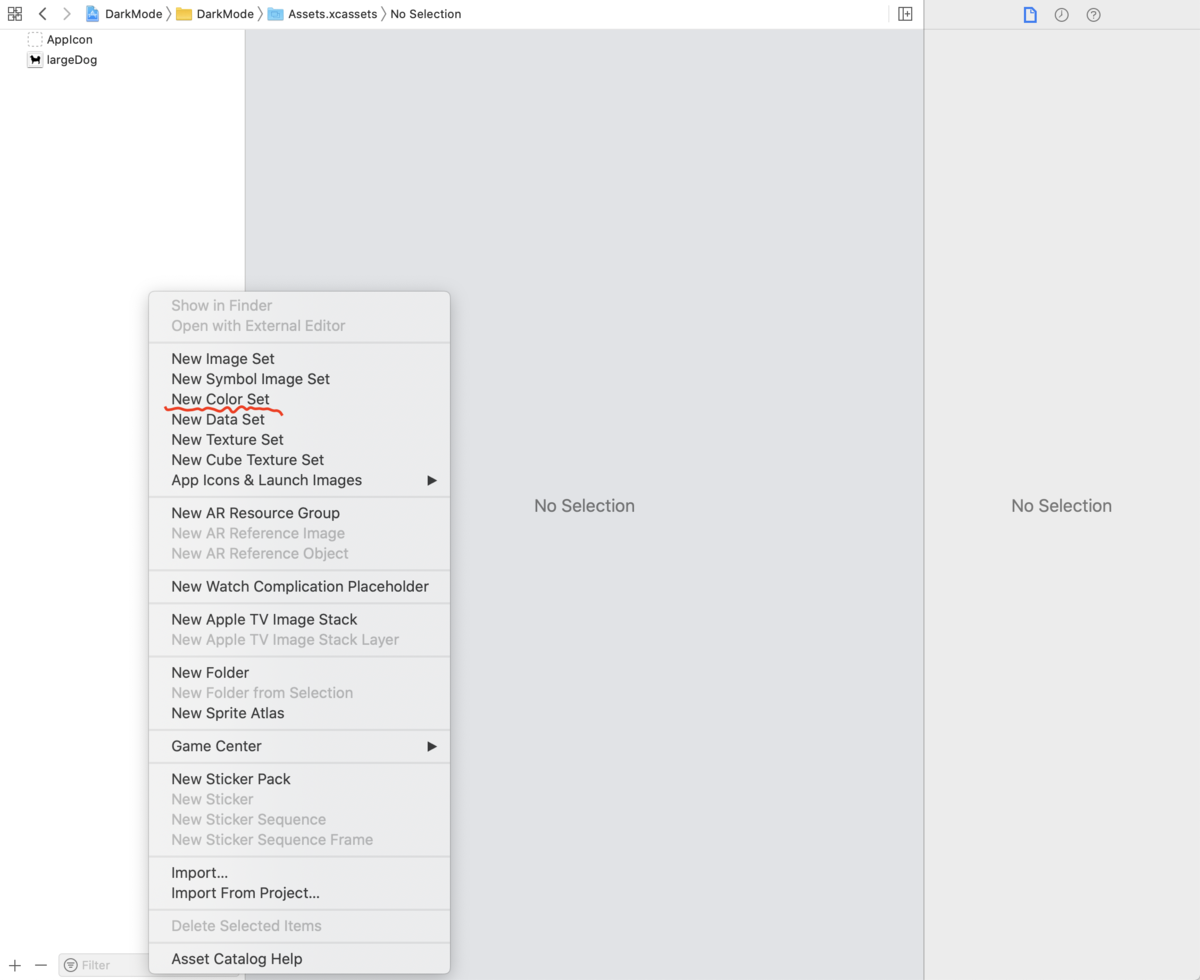
Assets Catalogの項目一覧の部分で右クリック.
すると項目にNew Color Setの項目があるのでクリック
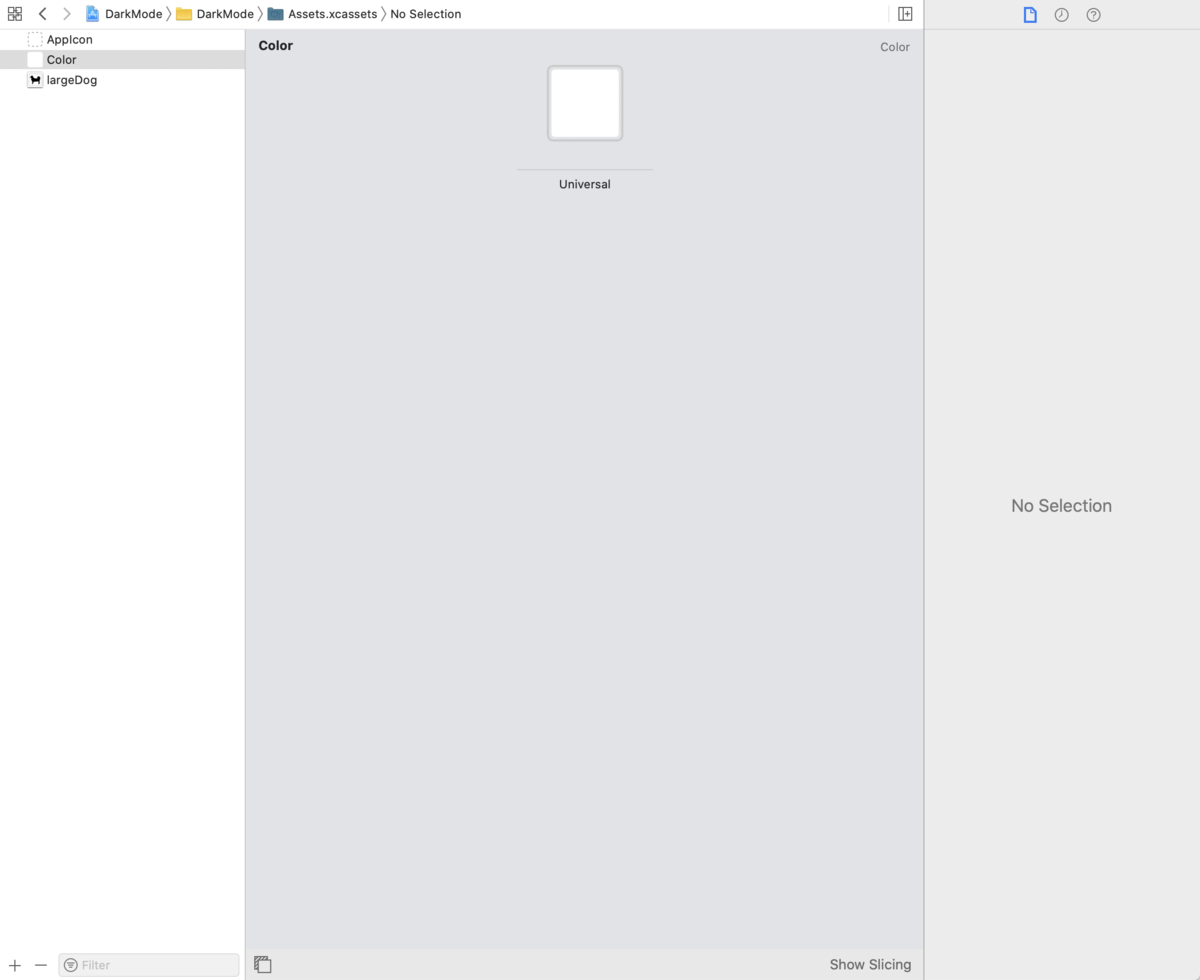
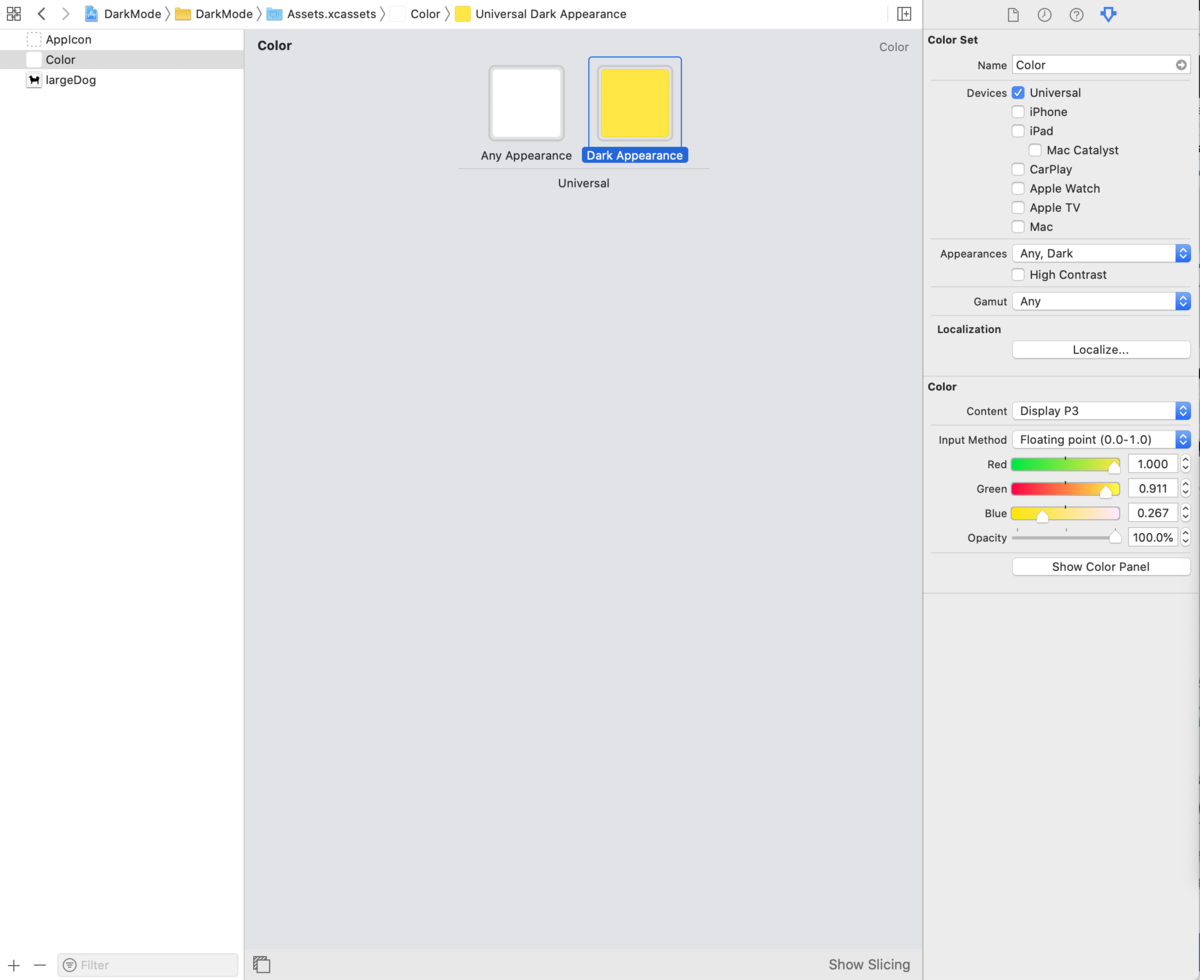
そして選択すると,画像の時と同じく右のところにAppearancesと言う項目があるので
その項目をNoneからAny, Darkに変更しましょう.
右のShow Color Panelを選択して好きに色を選択しておきましょう.
プログラムでの設定
StoryBoardからのやり方は多分同じだと思うので
コードベースでのやり方を書きます.
import UIKit
class ViewController: UIViewController {
let titleLabel: UILabel = {
var test = UILabel()
test.font = .systemFont(ofSize: 30)
test.text = "アイウエオ"
test.textColor = UIColor(named: "Color")
test.textAlignment = .center
test.numberOfLines = 1
test.minimumScaleFactor = 0.5
test.translatesAutoresizingMaskIntoConstraints = false
return test
}()
let img: UIImageView = {
var test = UIImageView()
test.image = UIImage(named: "largeDog")
test.contentMode = .scaleAspectFill
test.translatesAutoresizingMaskIntoConstraints = false
return test
}()
let btn: UIButton = {
let button = UIButton(type: UIButton.ButtonType.system)
button.backgroundColor = .white
button.setTitle("これまでのタネ", for: .normal)
button.setTitleColor(UIColor(named: "Color"), for: .normal)
button.titleLabel?.font = UIFont.systemFont(ofSize: 30)
button.layer.cornerRadius = 10
button.layer.borderColor = UIColor(named: "Color")?.cgColor
button.layer.borderWidth = 3
button.translatesAutoresizingMaskIntoConstraints = false
return button
}()
override func viewDidLoad() {
super.viewDidLoad()
view.addSubview(titleLabel)
view.addSubview(img)
view.addSubview(btn)
setUpAutoLayout()
}
func setUpAutoLayout() {
titleLabel.centerXAnchor.constraint(equalTo: self.view.safeAreaLayoutGuide.centerXAnchor).isActive = true
titleLabel.topAnchor.constraint(equalTo: view.safeAreaLayoutGuide.topAnchor).isActive = true
titleLabel.widthAnchor.constraint(equalTo: view.safeAreaLayoutGuide.widthAnchor, multiplier: 0.8).isActive = true
titleLabel.heightAnchor.constraint(equalToConstant: 100).isActive = true
img.widthAnchor.constraint(equalTo: titleLabel.widthAnchor).isActive = true
img.topAnchor.constraint(equalTo: titleLabel.bottomAnchor, constant: 100).isActive = true
img.heightAnchor.constraint(equalToConstant: 100).isActive = true
img.centerXAnchor.constraint(equalTo: view.centerXAnchor).isActive = true
btn.centerXAnchor.constraint(equalTo: view.centerXAnchor).isActive = true
btn.topAnchor.constraint(equalTo: img.bottomAnchor, constant: 100).isActive = true
btn.widthAnchor.constraint(equalTo: titleLabel.widthAnchor).isActive = true
btn.heightAnchor.constraint(equalToConstant: 100).isActive = true
}
}
実行画面
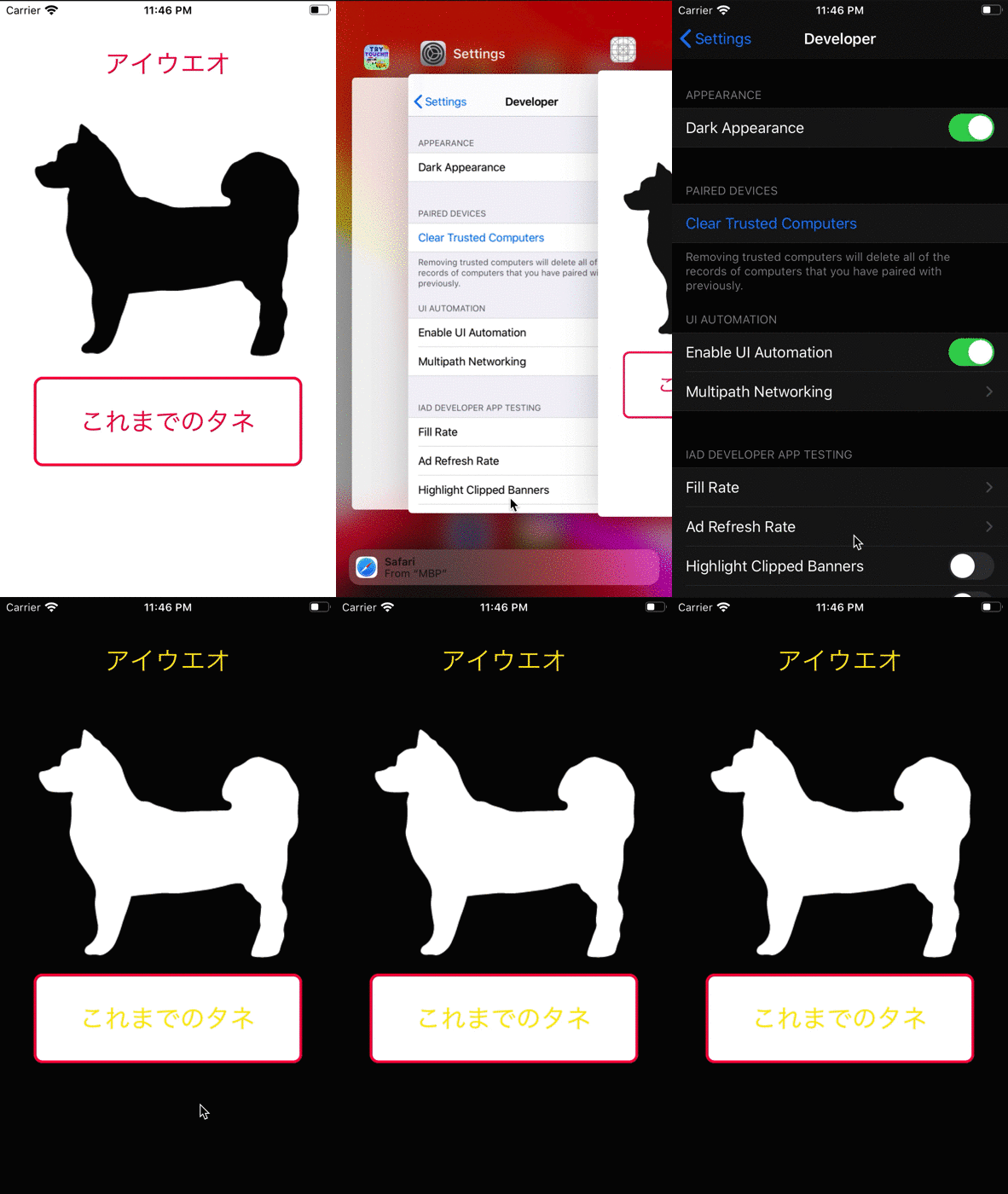
見てもらうと分かるとおり
ボタンの枠の色が変わりません.
直しましょう.
直し方は非常に簡単でtraitCollectionDidChange()をオーバーライドして,
モード切り替えを検出するだけです.
import UIKit
class ViewController: UIViewController {
let titleLabel: UILabel = {
var test = UILabel()
test.font = .systemFont(ofSize: 30)
test.text = "アイウエオ"
test.textColor = UIColor(named: "Color")
test.textAlignment = .center
test.numberOfLines = 1
test.minimumScaleFactor = 0.5
test.translatesAutoresizingMaskIntoConstraints = false
return test
}()
let img: UIImageView = {
var test = UIImageView()
test.image = UIImage(named: "largeDog")
test.contentMode = .scaleAspectFill
test.translatesAutoresizingMaskIntoConstraints = false
return test
}()
let btn: UIButton = {
let button = UIButton(type: UIButton.ButtonType.system)
button.backgroundColor = .white
button.setTitle("これまでのタネ", for: .normal)
button.setTitleColor(UIColor(named: "Color"), for: .normal)
button.titleLabel?.font = UIFont.systemFont(ofSize: 30)
button.layer.cornerRadius = 10
button.layer.borderColor = UIColor(named: "Color")?.cgColor
button.layer.borderWidth = 3
button.translatesAutoresizingMaskIntoConstraints = false
return button
}()
override func viewDidLoad() {
super.viewDidLoad()
view.addSubview(titleLabel)
view.addSubview(img)
view.addSubview(btn)
setUpAutoLayout()
}
override func traitCollectionDidChange(_ previousTraitCollection: UITraitCollection?) {
guard let pt = previousTraitCollection else { return }
if #available(iOS 13.0, *) {
if pt.hasDifferentColorAppearance(comparedTo: self.traitCollection) {
btn.layer.borderColor = UIColor(named: "Color")?.cgColor
}
}
}
func setUpAutoLayout() {
titleLabel.centerXAnchor.constraint(equalTo: self.view.safeAreaLayoutGuide.centerXAnchor).isActive = true
titleLabel.topAnchor.constraint(equalTo: view.safeAreaLayoutGuide.topAnchor).isActive = true
titleLabel.widthAnchor.constraint(equalTo: view.safeAreaLayoutGuide.widthAnchor, multiplier: 0.8).isActive = true
titleLabel.heightAnchor.constraint(equalToConstant: 100).isActive = true
img.widthAnchor.constraint(equalTo: titleLabel.widthAnchor).isActive = true
img.topAnchor.constraint(equalTo: titleLabel.bottomAnchor, constant: 100).isActive = true
img.heightAnchor.constraint(equalToConstant: 100).isActive = true
img.centerXAnchor.constraint(equalTo: view.centerXAnchor).isActive = true
btn.centerXAnchor.constraint(equalTo: view.centerXAnchor).isActive = true
btn.topAnchor.constraint(equalTo: img.bottomAnchor, constant: 100).isActive = true
btn.widthAnchor.constraint(equalTo: titleLabel.widthAnchor).isActive = true
btn.heightAnchor.constraint(equalToConstant: 100).isActive = true
}
}
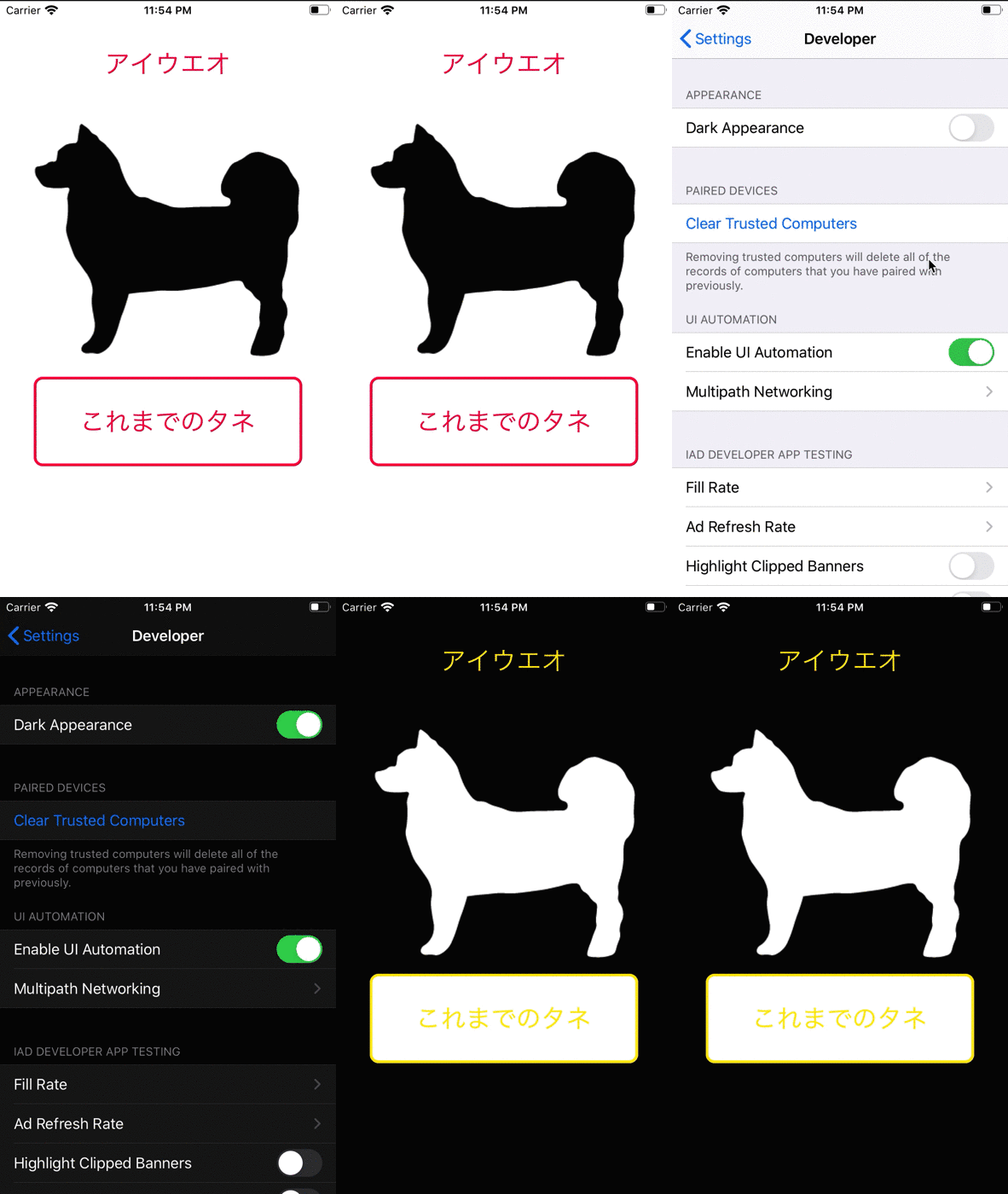
色を変えることができました.
非常に簡単に色・画像をライト・ダークモード対応にすることができました.
ボタンの枠線など忘れがちなので今回説明いたしました.
おわりに
今回使用した,LargeDogの画像を使用している僕が作ったアプリ
「DogAge Converter」をAppStoreで是非ダウンロードしてみてください.
非常にシンプルなアプリで人間の年齢を犬の年齢に変換できます.
それだけです.
是非,以下からダウンロードよろしくお願いいたします.
DogAgeConverter